

Apple Account Binding Information
* NEW FOR 2025 – APPLE USERS ONLY *
Apple device users – your mobile tickets are getting more secure. Here’s what you need to know:
What’s Changing
Your mobile tickets now include account binding—a security feature that links your tickets to your Apple Account, similar to how Apple Pay protects your payment cards.
This change prevents unauthorized ticket sharing and protects against fraud while keeping the same easy entry experience you’re used to.
What You Need to Know
- Your UVATix.com account will now be permanently bound to your Apple account.
- Each person who downloads a ticket to their device must have their own UVATix.com account.
- ALWAYS use the official ticket transfer feature in your UVATix.com account.
- NEVER share your UVATix.com login with anyone not using your Apple device.
- NEVER forward a “download to wallet” email as a way of sharing tickets with others.
To set up account binding, sign in to your UVATix.com account and add one ticket (do not select “add all”) to your wallet. Follow the Apple verification prompt. Your accounts are now bound. Feel free to use the transfer feature to share your tickets with others.
How It Works
First Time Setup: When you add your first mobile ticket to your Apple Wallet, Apple will ask you to verify your Apple Account using Face ID, Touch ID, or your password. This one-time step creates a secure connection between your UVATix.com account and your Apple Account.
Future Tickets: All future tickets from Virginia Athletics will automatically link to your Apple Account — no additional setup needed.
At the Gate: Nothing changes. Tap your phone at the scanner just like before.
Sharing Tickets with Family and Friends
You can no longer forward “Add to Wallet” emails to share tickets. Do not share your UVATix.com login info to share tickets with others either. Instead, use the official transfer feature in your UVATix.com account.
For Groups and Families: Each person who downloads a ticket to their device must have their own UVATix.com account. The person who bought the tickets should download their ticket(s) to their own Apple Wallet. This person then transfers tickets to other group members through the official process.
Please see the Transferring Tickets portion below for a step-by-step guide.
What to Look For
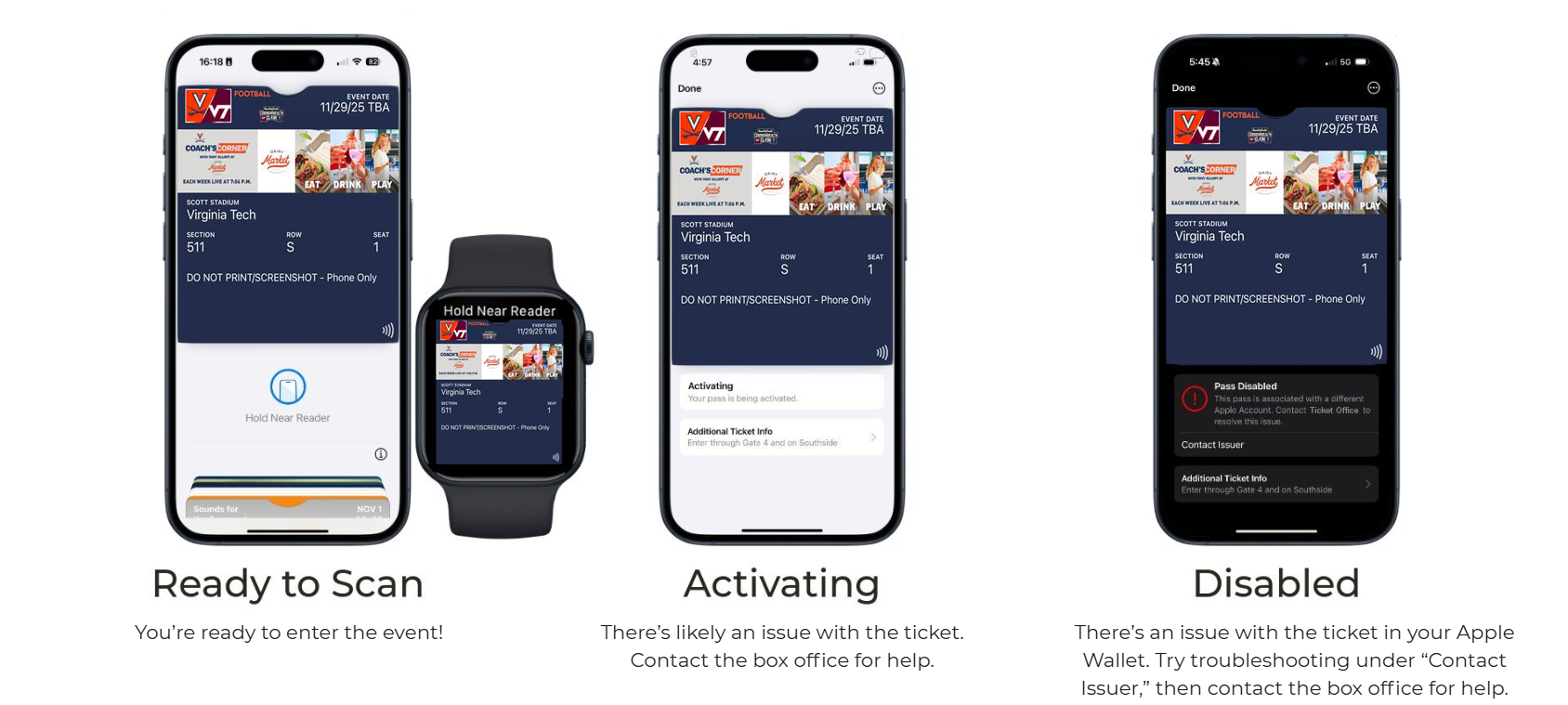
Ready to Scan: Look for “Hold near reader“ on your pass in Apple Wallet—this means your ticket is properly linked and ready to use.
Ready to Scan: Look for the “Hold Near Reader” icon towards the bottom of your Apple Wallet pass. This confirms that your ticket is properly linked and ready to scan.
If you don’t see this icon:
- Check that your device is signed into the same Apple Account used when first adding tickets
- Attempt to remove and re-add the ticket from your Apple Wallet
- Ensure that your device is connected to wi-fi or cellular data
- If problems persist, contact the Virginia Athletics Ticket Office
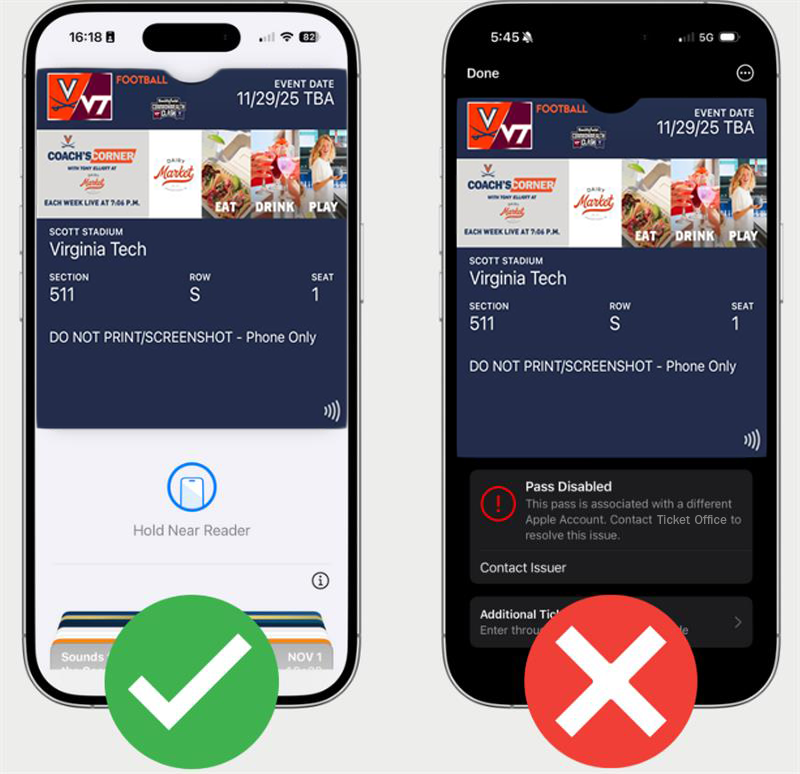
Each person who needs to download a ticket to their device must have their own UVATix.com account.
ALWAYS use the My Account transfer feature within your UVATix.com account.
NEVER share login information, screenshots, or delivery emails with ticket links – these methods will result in a DISABLED ticket.
 |
 |
NOTE: Ticket Transfer should only be used to send tickets to other fans. A separate Virginia Athletics ticket account is required to accept a transfer. DO NOT INITIATE A TICKET TRANSFER TO YOURSELF.
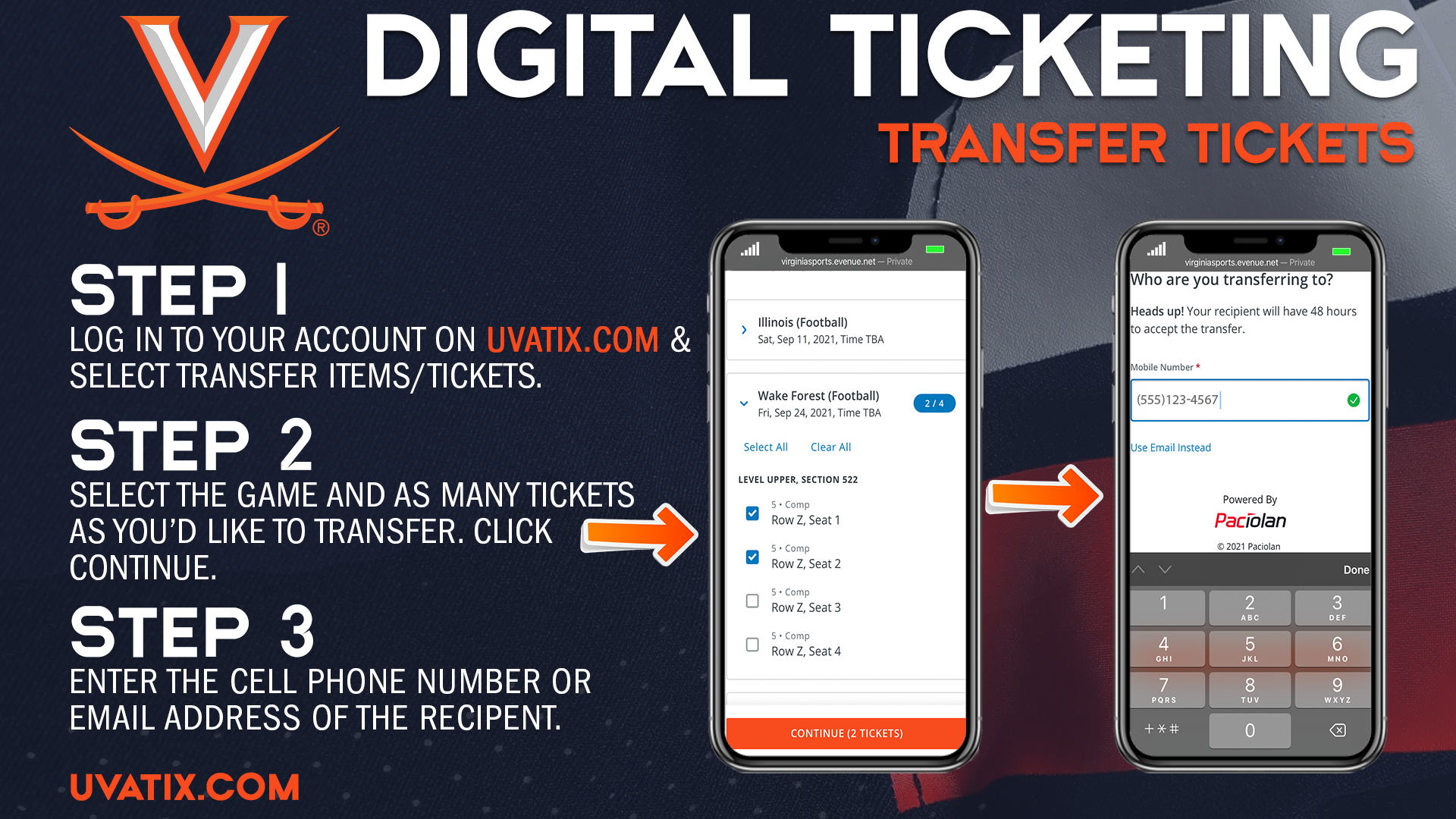
Here’s how to transfer your tickets to anyone via text or email:
From A Smartphone:
- Log in to My Account
- Tap “My Account” at the top of UVATix.com
- Tap “Transfer Tickets“
- Select the desired game and specific seats you wish to transfer
- Please note you can select as many tickets to as many games as needed in one transfer
- Tap “Continue“
- Type in the cell phone number (or click send to an email address) of the person you wish to send the tickets to
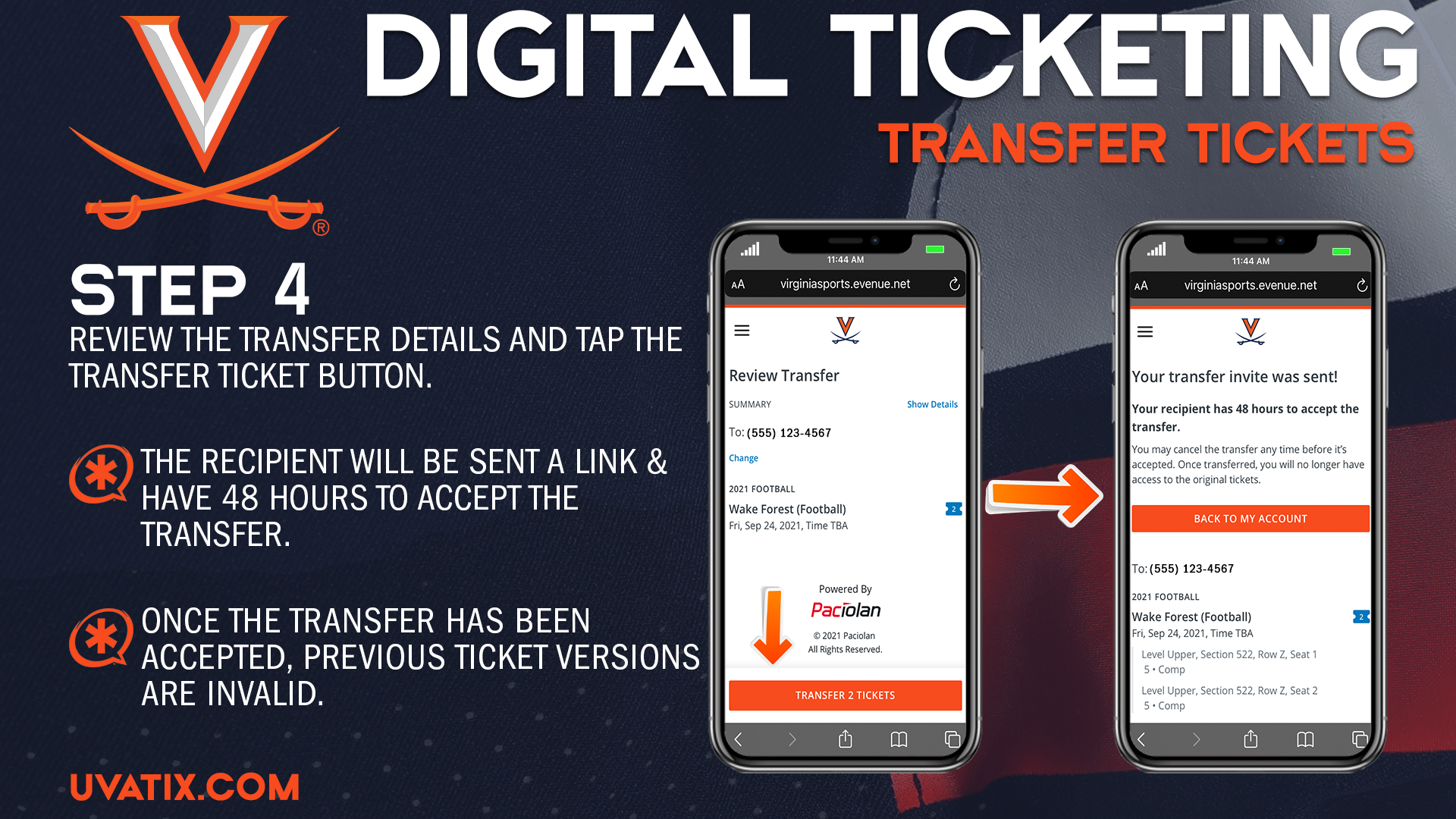
- Tap “Review Transfer“
- Tap “Transfer“
From A Computer:
- Log in to My Account
- Click “My Account” at the top of UVATix.com
- Click “Transfer Tickets“
- Select the desired game and specific seats you wish to transfer
- Please note you can select as many tickets to as many games as needed in one transfer
- Click “Continue“
- Type in the cell phone number (or click send to an email address) of the person you wish to send the tickets to
- Click “Transfer Tickets” and review the transfer details
The ticket recipient will be sent a link to accept the tickets. Recipients should completely follow the included instructions to claim their ticket(s) within 48 hours.
Please know that once your guest accepts a ticket, all previous versions of that ticket are no longer valid.
APPLE BINDING
Do I need to do anything different?
For the first ticket you download after August 1, you will need to verify your Apple Account once. After that, everything works automatically.
What if I’m having trouble?
Make sure you’re signed into the same Apple Account you used when first adding tickets. If problems continue, contact us at 434-924-8821.
Can I still share my tickets?
Only by the official transfer feature on your UVA Athletics ticket account. You will no longer be able to forward emails or share passwords.
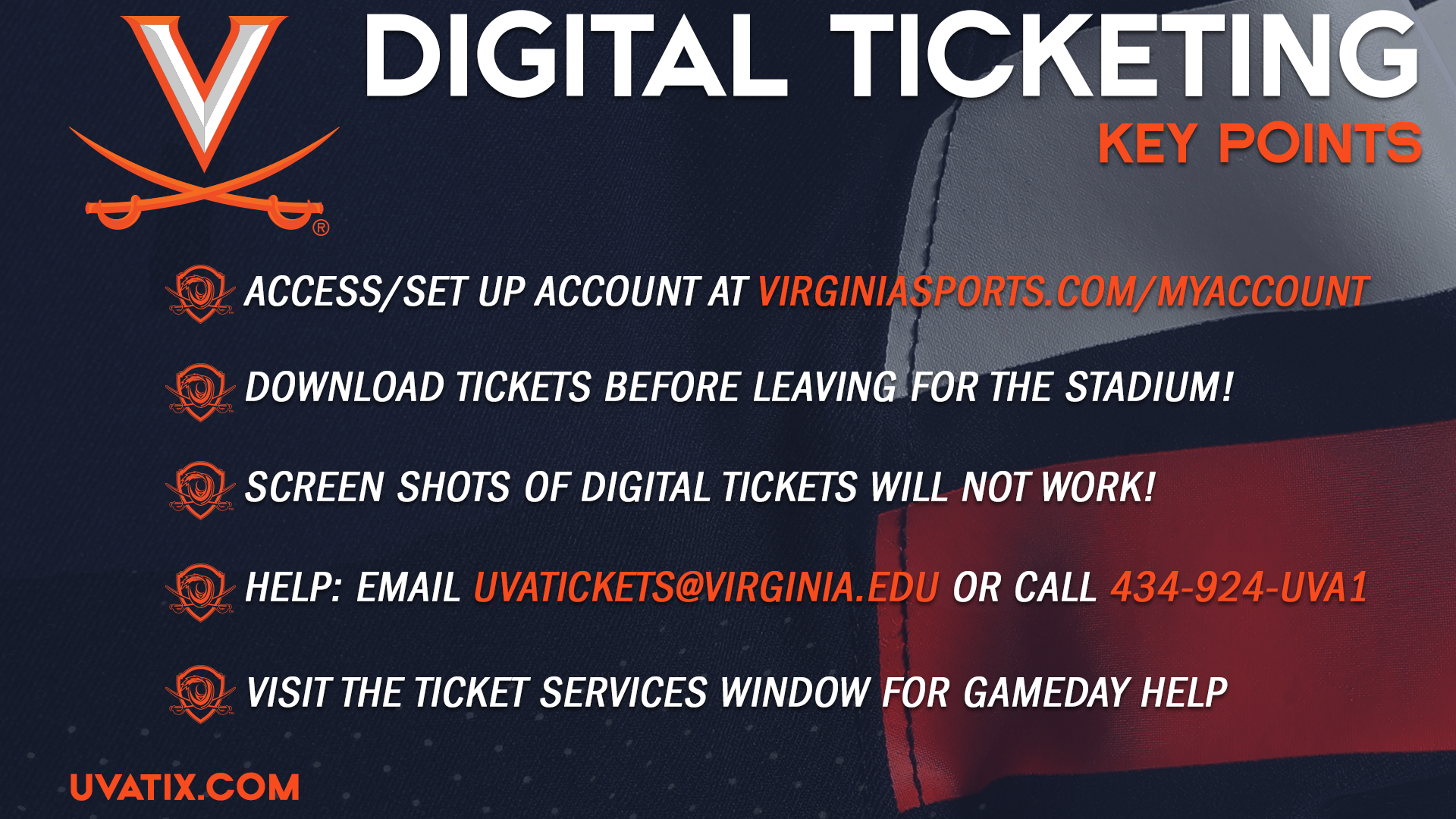
DIGITAL TICKETING
Why did we transition to mobile tickets?
Mobile ticketing provides a safe, secure, and convenient ticketing environment for Virginia Athletic fans.
- No more losing tickets in the mail, forgetting your tickets at home, or bringing the wrong tickets
- Easily manage your tickets via your online My Tickets account
- Enjoy simple, contactless entry into the stadium
- Never worry about having fraudulent tickets again
Additionally, Transitioning to mobile tickets is a not insignificant cost-savings measure, allowing us to allocate funds within the operational budget to better support our 750+ student athletes.
What are mobile tickets?
Mobile Tickets are similar to traditional event tickets, but they are easier to use and more secure. You simply add your ticket(s) to your Apple Wallet or Google Pay app on your smart phone and easily access them when you arrive at the stadium. You will not see the traditional barcode on your mobile ticket, instead they work via NFC (near field communication) technology.
Can I take a screenshot or download and print my mobile tickets?
No, mobile tickets use NFC (near field communication) technology and a screenshot will not work.
How do I manage my tickets? Can I manage my tickets on my computer instead of my mobile device?
Managing your tickets is easy through My Account on UVATix.com. Simply log-in using your email address to view, transfer, or post your tickets for re-sale on SeatGeek. Your My Tickets account can be accessed on any device (smartphone, computer, or tablet) with a working internet connection, but can only be downloaded when viewed on your smartphone.
What if I am unable to remember my account login information?
While on the My Account login page, click “Forgot Password” and follow the instructions to create a new password for your account. You may also use the “Sign In With Code” option for quicker access.
What if I cannot find the email the tickets were delivered in?
Season tickets can only be accessed through My Account. Simply log in to your account using your email address to manage all of your tickets.
Can I transfer my tickets to someone else from my phone’s wallet app?
Tickets can only be transferred from My Account. Simply log in to your account using your email address and click Transfer Tickets/Items to get started. Once the transfer has been accepted by the recipient, the ticket you sent will show up as not valid in your phone’s wallet app.
What if my ticket can’t be read at the gate?
Should you have difficulty with scanning your contactless ticket, you may instead access your ticket’s unique QR code. To do this, simply follow these instructions:
Apple Devices: Tap the … button in the top right corner of the screen, then scroll down. The QR code will be located approximately halfway down the page.
Android Devices: Scroll down below the ticket image and tap “Show Code”. The QR code will be displayed.
The QR code on each ticket may be scanned using the reader located at the bottom of the pedestal scanner device. If you need assistance, game day staff at the entry gate area will be happy to help you.
Can I have multiple tickets on the same mobile device?
Yes, you can swipe through your available tickets at the venue if the entire party is present. However, if your party is entering at different gates/times you will need to send each attendee their individual ticket.
What if I do not have an iPhone or Android mobile device?
If you do not have a smartphone, you can transfer your tickets from a computer to someone in your party who does have a smartphone. If that is not an option, please contact the Virginia Athletics Ticket Office at uvatickets@virginia.edu.
Can I still print my tickets at home?
No, print-at-home tickets are no longer available. This option has been eliminated in an effort to prevent and reduce fraudulent tickets.
How do I enter the stadium using mobile tickets?
As you approach the pedestal ticket scanners, pull out your smartphone and open your Apple Wallet or G Pay app. Next, tap on the appropriate ticket and simply hold the back of your phone to the ticket scanner. Finally, swipe left or right to scan any additional tickets that you have for the game.
What if I cannot get service nor Wi-Fi at the stadium?
We strongly recommend that you add your tickets to your Apple Wallet or G Pay account prior to departing for the stadium. Once the tickets are in your Apple Wallet or G Pay account, you do not need an internet connection to pull them up and scan into the stadium.
What if my guests and I arrive at different times/use different gates?
If your guests are entering separately you will need to transfer their tickets so that they may download them and enter at their own convenience.
What if my mobile ticket will not scan properly?
Make sure that your screen brightness is turned up all the way. If you continue to have issues scanning your tickets, please visit a Ticket Services window.
What if my mobile device battery dies, breaks, or is lost?
If you have issues on gameday, please visit a Ticket Services window for assistance.
What if I don’t have a smartphone?
Please contact the ticket office at 434-924-8821 to discuss.
I still have questions that are not answered above, who do I talk to?
Please contact the Virginia Athletics Ticket Office Monday-Friday from 9 am to 5 pm with any additional questions regarding mobile ticketing.